Introduction
The Super Bowl brings together fans from all corners of the globe, bonding over their shared love for football. Samsung TVs offer a fantastic platform for catching this epic event, known for their cutting-edge technology and smart features. However, ensuring a seamless experience is key. This guide lays out how to watch the Super Bowl on your Samsung TV, from essential apps, optimizing your settings, to troubleshooting tips for the perfect game day.
Understanding Samsung TV Features
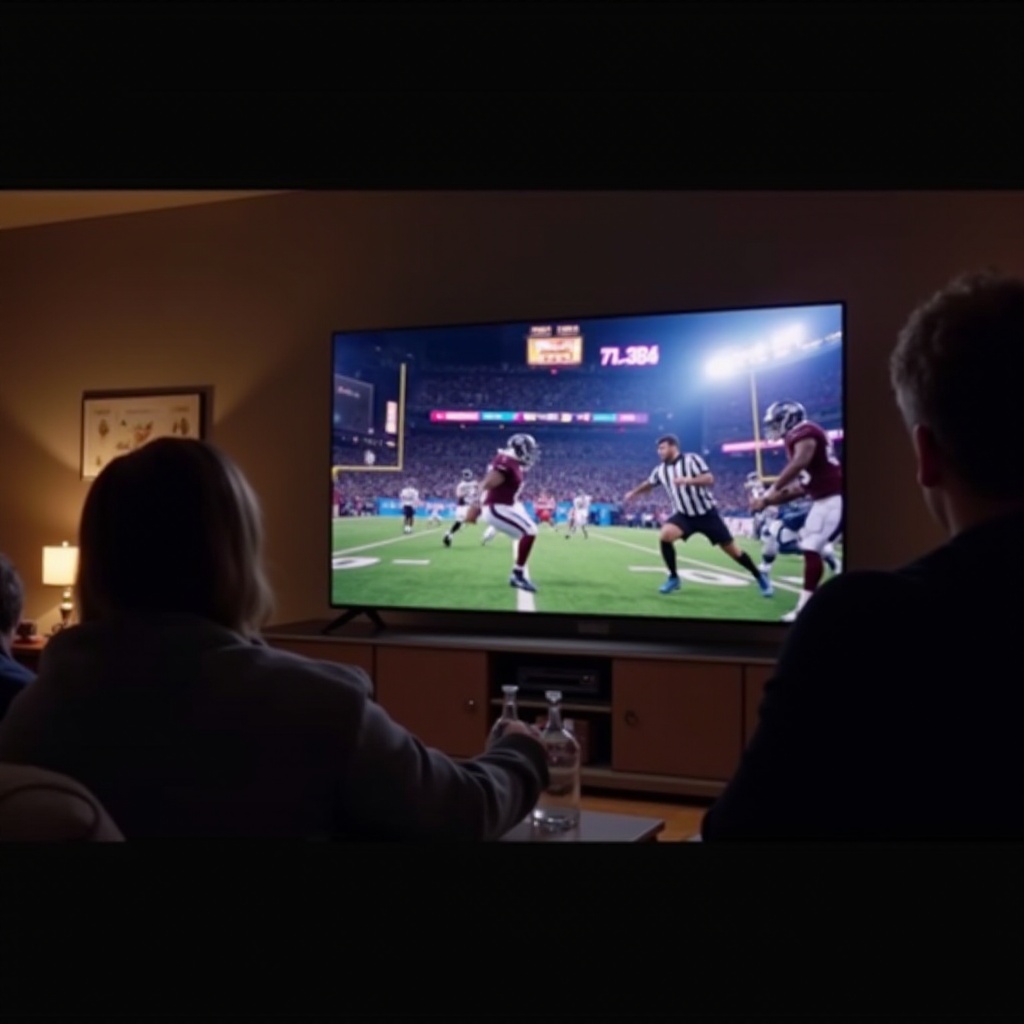
Samsung TVs boast a host of features that elevate the sports viewing experience. These smart TVs are equipped to handle diverse content, making them an excellent choice for the Super Bowl.
-
Smart TV Capabilities: Samsung Smart TVs are internet-ready, allowing access to apps and streaming services directly through your TV without the need for additional devices. Connect your TV to Wi-Fi and navigate user-friendly interfaces to download necessary sports streaming apps.
-
Built-in Streaming Apps: Samsung TVs often come pre-installed with popular streaming platforms like Netflix, Disney+, and more. For the Super Bowl, applications such as NBC Sports, Sling TV, and YouTube TV are indispensable, as they offer live coverage of the event.
As we gain an understanding of these features, let’s proceed to explore the specific applications vital for streaming the Super Bowl.
Streaming the Super Bowl on Samsung TV
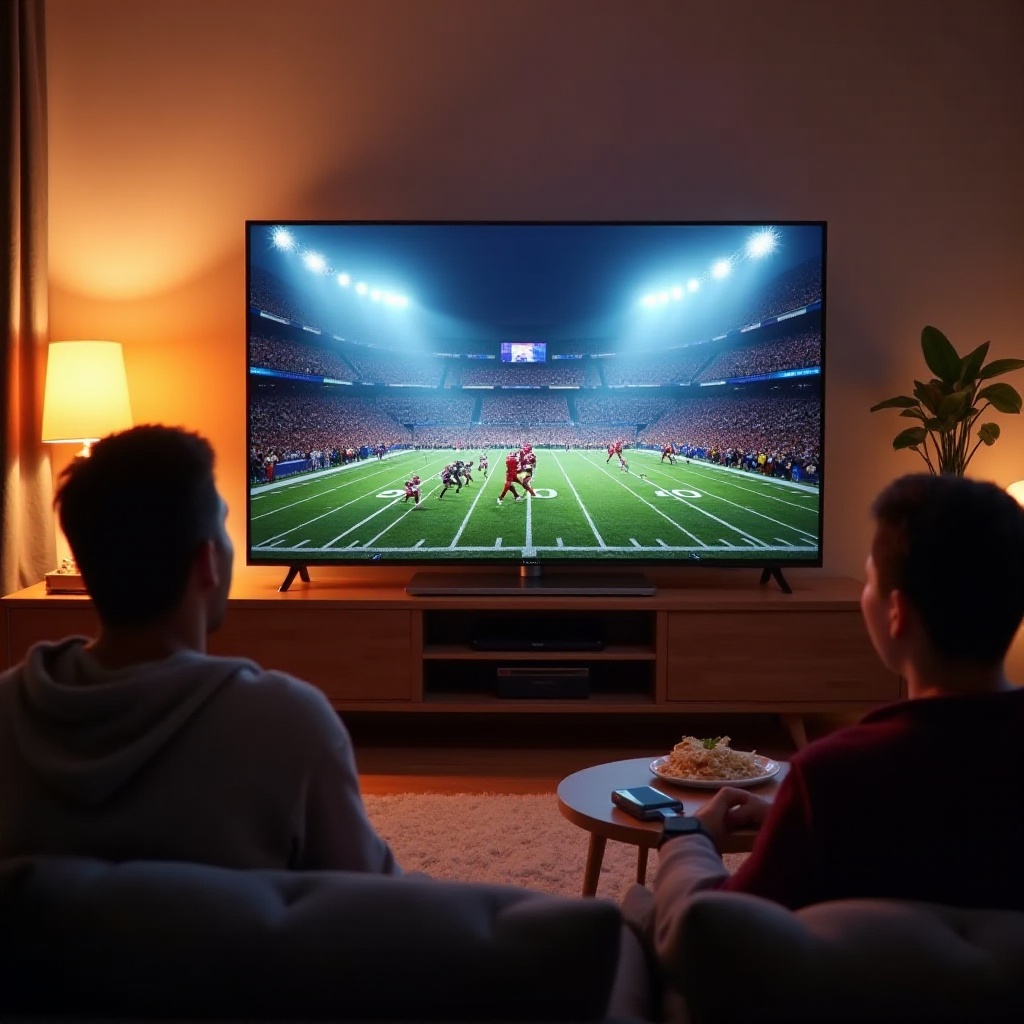
With your Samsung TV ready, let’s delve into the apps you’ll need for the ultimate Super Bowl experience:
-
NBC Sports App: NBC Sports is a premier network for Super Bowl streams. Download the app from the Samsung store, log in with your cable provider credentials, and you’re all set for the live game stream.
-
Sling TV: As a subscription service, Sling TV provides channel packages that include NBC. Customize your viewing experience, download the app, subscribe, and log in to watch the Super Bowl.
-
YouTube TV: Known for its array of channels, YouTube TV offers access to NBC’s Super Bowl broadcast. Subscribe, download the YouTube TV app, and ensure you navigate to the live section on game day.
With these apps, you have various options to access the broadcast. Now, let’s maximize your viewing pleasure by setting up your TV for the best performance possible.
Setting Up Your Samsung TV for Optimal Super Bowl Viewing
Getting the right apps is part of the game plan. To fully enjoy the Super Bowl, optimizing your TV performance is imperative. Here’s how:
-
Software Updates: Make sure your TV’s software is up to date. This is crucial for app compatibility and can fix bugs that might disrupt streaming. Head to your TV’s settings, select ‘Support,’ then ‘Software Update,’ and click ‘Update Now.
-
Picture and Sound Settings: Although default settings are sufficient, enhancing them can improve viewing immensely. Switch your picture mode to ‘Sports Mode’ for brighter colors and sharper images. Adjust sound settings to embrace ‘Surround Sound’ if possible, immersing you completely in stadium-like audio.
Having optimized your TV, you’re primed for an unforgettable Super Bowl experience. Let’s explore further enhancements for game day.
Maximizing Your Game Day Experience
To further elevate your Super Bowl viewing, consider enhancing both visual and auditory aspects:
-
Surround Sound Options: If you possess an external sound system, connect it for an immersive experience. Systems like Dolby Atmos deliver stadium-like ambience. If relying on TV speakers, enable virtual surround sound options for a boost.
-
Using Samsung TV Plus: This complimentary service offers various channels without subscription. Although it might not feature the Super Bowl directly, it provides pre-game content and sports highlights.
These enhancements ensure your home setup rivals top-notch sports venues. However, even superior setups encounter issues, leading to our next focus: troubleshooting.

Troubleshooting Common Issues
Encountering technical issues during the game is frustrating. Here are frequent problems and their fixes:
-
Connectivity Problems: First, check your internet connection if issues arise. Reboot your router or place it closer to the TV. Ensure no large downloads are consuming bandwidth simultaneously.
-
Streaming Lags and Buffering: If buffering occurs, reduce streaming quality, as lesser quality uses less bandwidth. Adjust video quality in app settings and close unnecessary background apps on your TV for optimal performance.
By preparing in advance and knowing how to address potential issues, you can enjoy a hassle-free Super Bowl viewing session.
Conclusion
Watching the Super Bowl on Samsung TV is set to be an unforgettable experience if you capitalize on its powerful features. Understanding how to stream using the right apps, optimizing picture and sound, alongside troubleshooting ensures a flawless game day. Armed with these tips, you’re ready to root for your team, replicating a stadium experience in your living room.
Frequently Asked Questions
How do I update apps on my Samsung TV?
Navigate to the Smart Hub, select ‘Apps,’ then ‘My Apps.’ Choose the app you want to update and click on ‘Update.’
What should I do if my stream is buffering during the game?
Lower the streaming quality, reduce network load by turning off other devices, or restart your router to improve buffering issues.
Can I watch the Super Bowl in 4K on my Samsung TV?
Check if the streaming service offers the game in 4K. Ensure your internet supports 4K streaming and TV settings are optimized for 4K.