Introduction
The Amazon Echo Show is a versatile device that merges Alexa’s voice-activated features with a display and camera, transforming your interaction with smart home technology. However, when the camera doesn’t function as expected, it hampers video calls, home security, and other visual activities. This guide aims to help you diagnose and resolve common camera issues effectively. Let’s delve into potential causes and their solutions, ensuring your Echo Show operates ideal once more.
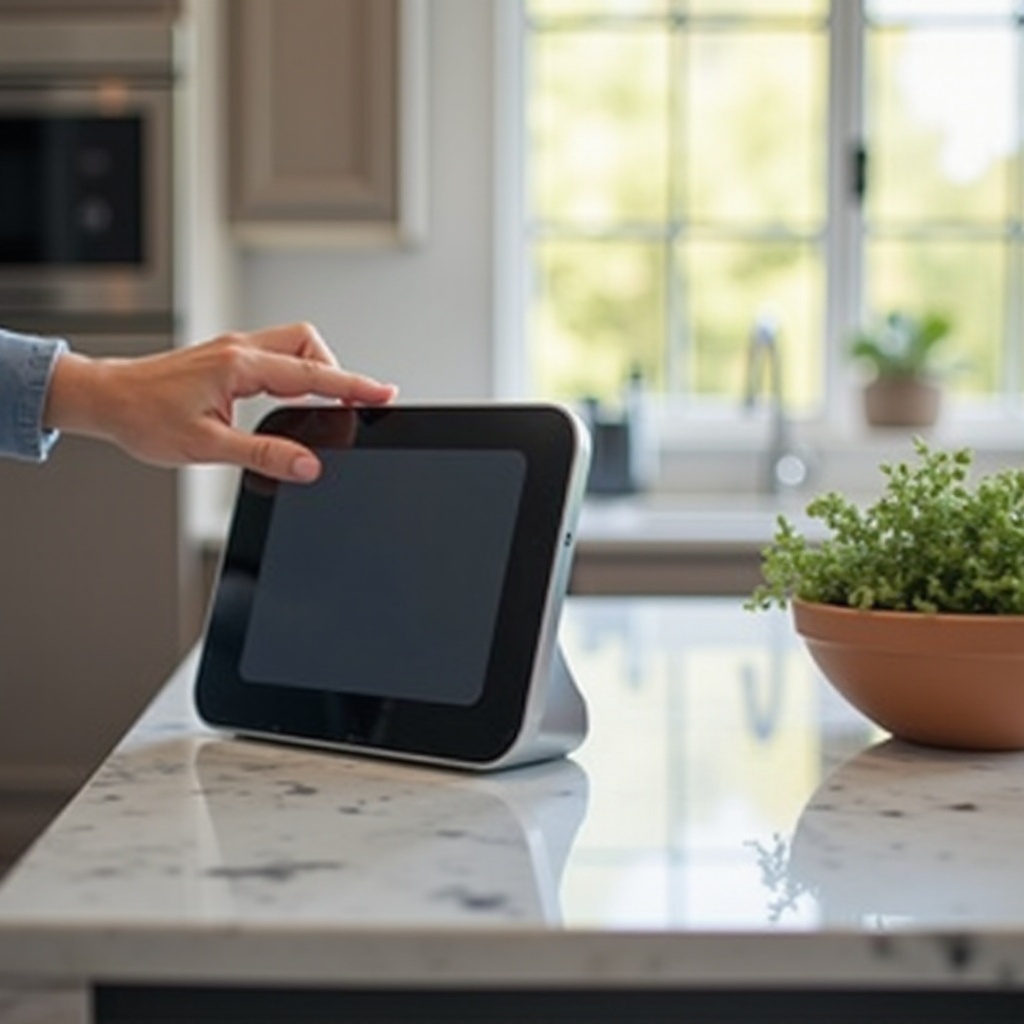
Common Causes for Echo Show Camera Not Working
Understanding what could go wrong is the first step in troubleshooting. The Echo Show may experience problems due to:
- Connectivity Issues: The device relies on a stable internet connection to perform optimally, and interruptions can cause the camera to malfunction.
- Software Glitches: Like any electronic device, the Echo Show might suffer from bugs and glitches affecting camera performance.
- Hardware Problems: Physical issues, such as damage from impacts or internal failures, can also be responsible for camera malfunctions.
Identifying these issues is crucial to troubleshooting. These potential causes lead us to some initial troubleshooting steps.
Initial Troubleshooting Steps
Before delving into more complex solutions, try these basic steps that often resolve simple issues:
-
Checking Device Settings: Confirm that the camera is enabled in your settings. Navigate to the device settings and verify it hasn’t been disabled.
-
Restarting Your Echo Show: Restarting can clear temporary software glitches. Unplug your device, wait for about a minute, and then plug it back in.
-
Inspecting Internet Connection: Ensure your Echo Show maintains a strong Wi-Fi connection. Consider rebooting your router and verifying the device’s network settings.
Moving beyond these steps, if the camera issues persist, advanced solutions may be necessary.
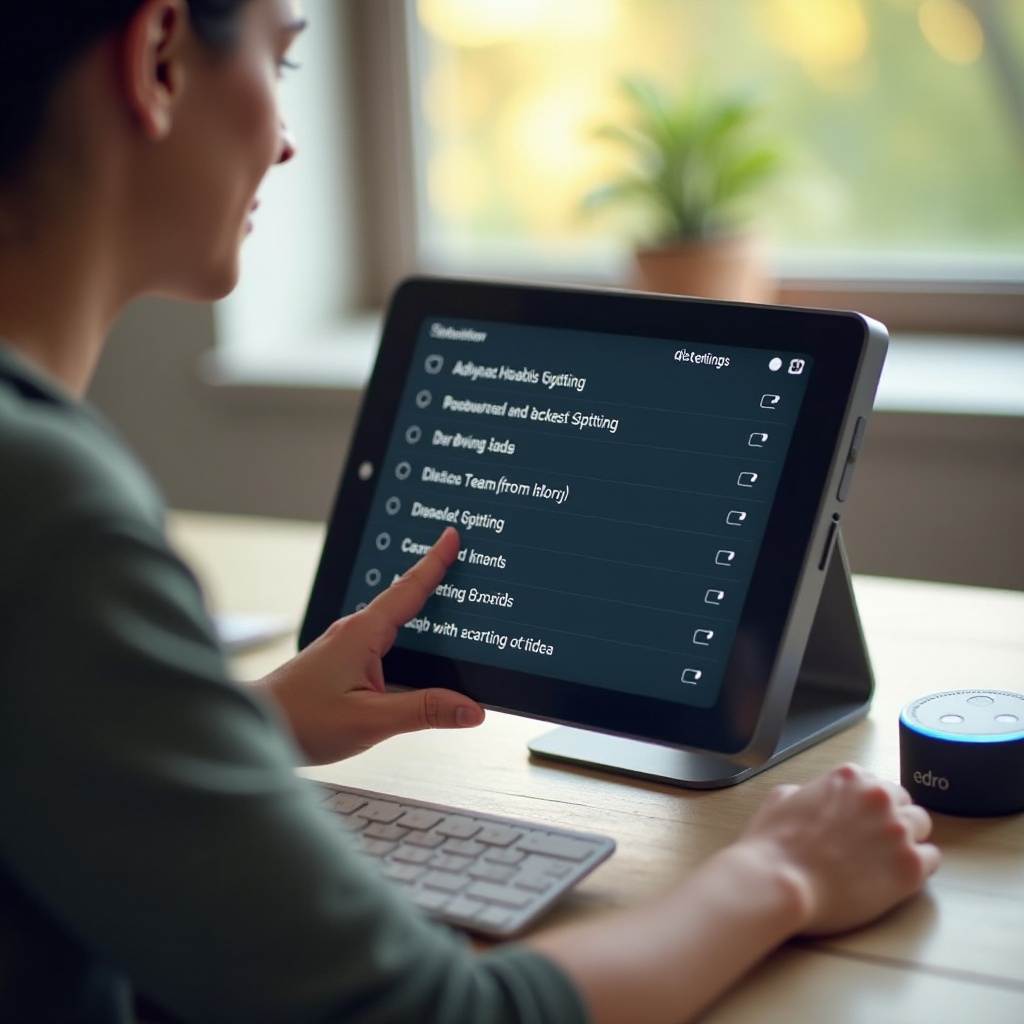
Advanced Solutions for Camera Malfunctions
If your Echo Show camera continues to malfunction after the initial checks, more targeted approaches might be required:
-
Updating the Echo Show Software: Ensure your device is up-to-date with the latest firmware. Navigate to the settings to check for any pending updates. Regular updates can resolve bugs and enhance performance.
-
Resetting to Factory Settings: If updates are ineffective, a full factory reset may be your next option. This process will clear user data and restore default settings. To initiate, swipe down on the screen, select ‘Settings,’ then ‘Device Options,’ and choose ‘Reset to Factory Defaults.
-
Ensuring Proper Power Supply: Inspect your power connection. An unstable power supply can cause hardware components, including the camera, to fail intermittently.
Once these advanced solutions are attempted, and issues persist, you may be dealing with deeper hardware problems.
Enhancing the Echo Show Speaker Experience
Beyond resolving camera issues, maximizing your device’s speaker performance can further enhance your experience. Explore the following enhancements:
-
Optimizing Audio Settings: Use the Alexa app to adjust the equalizer settings, tailoring bass, midrange, and treble to your preference. This can significantly improve sound quality.
-
Using External Speakers for Better Sound: For an enhanced audio experience, pair your Echo Show with a Bluetooth speaker. This setup can amplify sound, making music and calls more vibrant.
-
Tips for Better Sound Placement: Proper positioning matters. Place your Echo Show on a stable surface, away from walls that can distort sound reflections.
These enhancements not only boost your device’s acoustic capabilities but also improve video call clarity, ensuring comprehensive enjoyment of your Echo Show.
Conclusion
Through both simple and advanced troubleshooting techniques, you can effectively address issues with your Echo Show’s camera. Enhancing the speaker setup further boosts the device’s overall functionality and user satisfaction. Should problems persist after exhausting these options, contact Amazon support for specialized assistance, possibly addressing underlying hardware issues.
Frequently Asked Questions
How can I test if my Echo Show camera is working properly?
Test the camera by initiating a video call to another Echo device, ensuring permissions are correctly set.
Will a poor Wi-Fi connection affect my camera performance?
Yes, a poor Wi-Fi connection can disrupt video calls and affect the camera’s performance on the Echo Show.
What should I do if my Echo Show camera still doesn’t work after troubleshooting?
If issues persist, contact Amazon customer support for further assistance or visit an authorized repair center.