Introduction
Discover the seamless integration of an Xbox controller with your iPad and unlock console-quality gaming on the go. For gamers looking to elevate their mobile experience, the combination of an Xbox controller and an iPad provides precise controls and greater enjoyment. This guide will help you set up your Xbox controller and explore the array of compatible games, enabling you to enhance your mobile gaming sessions.
Why an Xbox Controller is Perfect for Your iPad
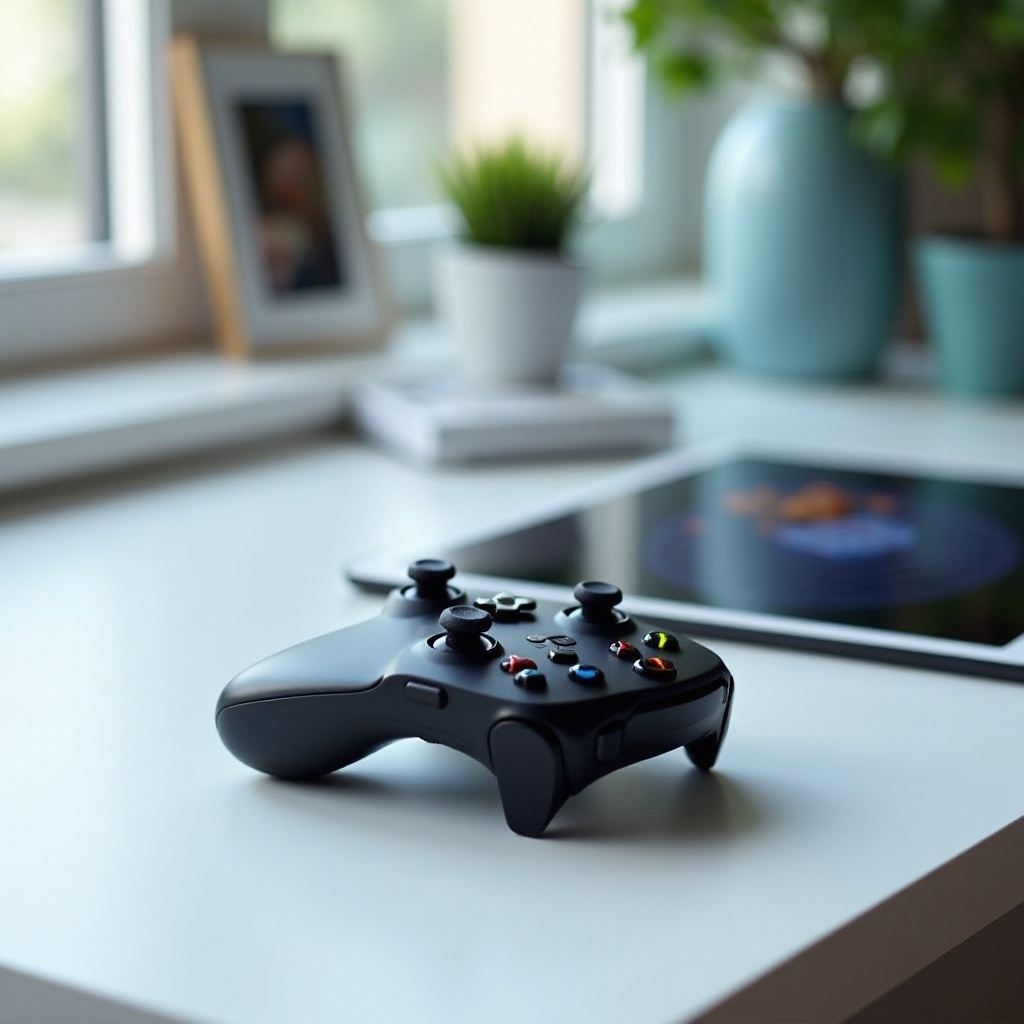
The Xbox controller is celebrated for its comfort and precision. When used with an iPad, it brings enhanced control and a familiar feel to mobile gaming. The ergonomic design, coupled with its responsive buttons, makes it an ideal choice for extended gaming sessions. By connecting your Xbox controller, you not only increase your gaming precision but also gain a competitive edge in various game genres.
Compatible Devices and System Requirements
Before diving into gameplay, ensure your devices are compatible:
-
iPad Models and iOS Versions: Your iPad should be running iOS 13 or later. Devices like iPad Air, iPad Pro, and standard iPads from 2018 onward support Xbox controllers efficiently.
-
Supported Xbox Controller Models: The Xbox Wireless Controller, particularly models from Xbox One S and Xbox Series X/S, are fully compatible. Ensure your controller’s firmware is up to date to optimize compatibility.
Understanding these requirements is the first step toward a seamless setup, which we’ll cover next.
Step-by-Step Guide to Connect Your Xbox Controller to an iPad
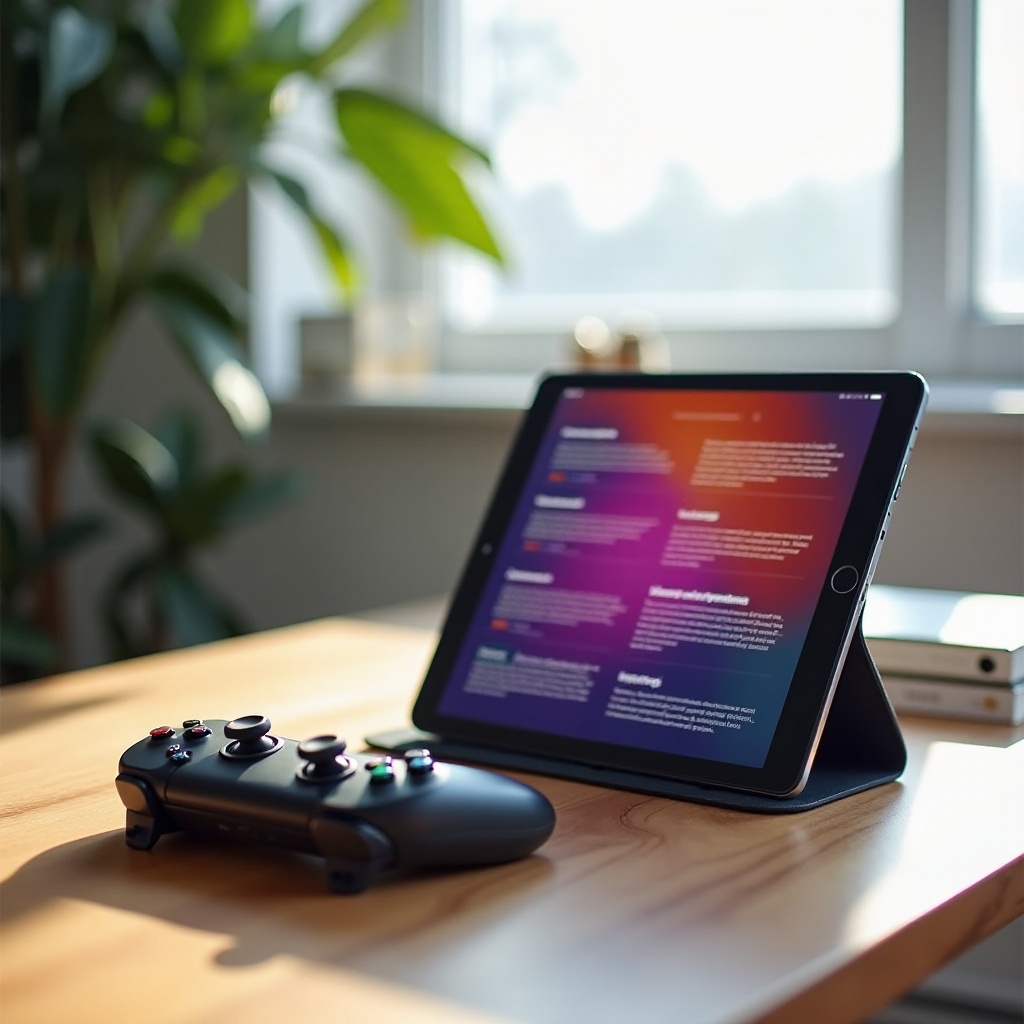
Follow these easy steps to pair your Xbox controller with an iPad:
- Preparing your Devices:
- Ensure your iPad runs the latest iOS version.
-
Charge your Xbox controller adequately before starting.
-
Pairing Your Xbox Controller:
- Press the Xbox button to turn on your controller.
- Activate pairing mode by holding the connect button until the Xbox button flashes.
-
Go to Settings > Bluetooth on your iPad, turn it on, and select the Xbox controller from the device list.
-
Testing the Connection:
- Launch a controller-supported game to test the setup.
- Use the controller for iPad navigation to check button responsiveness.
With your controller successfully connected, let’s explore the best games to enhance your experience.
Best Gaming Apps for Xbox Controller on iPad
With the Xbox controller paired, explore an array of iPad games that take your gaming to the next level:
- Action and Adventure Games:
- ‘Call of Duty: Mobile’: Experience enhanced shooting precision and smoother movements.
-
‘Fortnite’: Improve your battle tactics with faster building and targeting.
-
Racing and Sports Games:
- ‘Asphalt 9: Legends’: Dominate tracks with precise steering and control.
-
‘eFootball PES 2021’: Enjoy realistic soccer gameplay with better handling.
-
Puzzle and Strategy Games:
- ‘Minecraft’: Explore more easily and build with greater accuracy.
- ‘Stardew Valley’: Enjoy farming and quests with seamless control.
These games harness the Xbox controller’s potential, making for a thrilling gaming experience. But what if something goes wrong? Let’s address possible issues.
Troubleshooting Common Connectivity Issues
Should you encounter problems, follow these solutions:
- Bluetooth Connectivity Problems:
- Confirm Bluetooth is active on both devices.
-
Restart your iPad and attempt reconnection if the controller isn’t recognized.
-
Controller Not Responding:
- Check battery levels and recharge if low.
- Toggle the iPad’s airplane mode briefly before reconnecting.
Implementing these fixes ensures continued, immersive gaming without interruption. Now, let’s wrap up.
Conclusion
Pairing an Xbox controller with your iPad significantly enriches the mobile gaming experience. The combination offers improved precision, comfort, and fun, transforming your device into a portable console. Follow this guide to unlock remarkable gaming possibilities, ensuring seamless connectivity and gameplay.
Frequently Asked Questions
Can I use an Xbox Series X controller with my iPad?
Yes, Xbox Series X controllers are compatible with iPads running iOS 13 or later.
How do I disconnect my Xbox controller from the iPad?
Go to Settings > Bluetooth, find your Xbox controller, and select ‘Forget This Device.’
Are there any iPad games that don’t work with Xbox controllers?
Some games not designed with controller support may only work with touch inputs. Check each game’s compatibility for specifics.